Back to FridayCards home Back to Main AntiSpyware page


Spybot - Search & Destroy v1.3

Installing Spybot - Search & Destroy is fairly painless. Double click the executable you downloaded and anytime it asks a question, just press enter to take the default answer. Make sure you check the box next to "I accept the agreement", about 3 dialog boxes into the install. The very first time you run the program it will automatically start the Spybot wizard. This will take you thru 7 dialog boxes offering you a chance to back up certain portions of your system. Whether you do this or not is up to you. The options themselves are noted on the button(s) that appear on each page. Clicking Next at the bottom left, will skip that page of items.

You should always first check for updates to the program everytime you run it. This will require that you be online.

You do this by clicking on the "Search for Updates" button.

If you do receive some updates as the below screens will explain, when you return to this screen click the "Immunize" button in the left pane and follow the prompts. It might or might not have any effect depending on the updates you downloaded. A box will pop up and tell you if you need to immunize, if so click Ok to close the dialog box and then click on Immunize at the top.


After clicking the "Search for Updates" button you will be presented with this screen. Click on "Search for Updates" to start the search. If any are found they will be shown in the bottom "Update" section. You will have to check the box to the left of each update if you want it. Rule of thumb would be just to check them all. Next click on the down arrow next to "No server selected". There are two servers in the US in there, you can pick either one. Then click on the "Download Updates" button. The updates will be downloaded and automatically installed.


Now click the "Search & Destroy" button in the left hand menu bar to get back to the main screen.

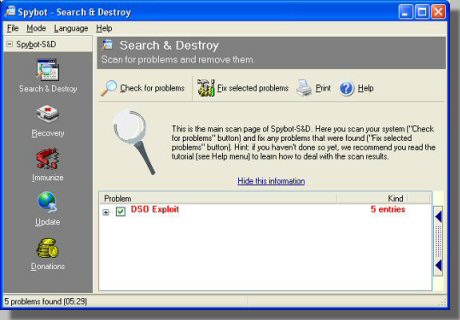
Click the "Check for problems" button to start the scan. You'll then see a screen like this one. The scan will probably take from 5 to 10 minutes.


After the scan is done, many items will be listed in the bottom, "Problem" section. Spybot is smart enough to check the boxes for the stuff you want deleted. These items will also be red. There might be other items that are not checked and these items will be green. In my experience all of the items already checked are the spyware. The unchecked green items are usually cookies or last item opened in various programs. I haven't found a case yet where I need to to check one of the green items. You can look at them though and see if you would rather they be deleted. Once you have the items you want selected just click on "Fix selected problems" and follow the on screen prompts to clean off the spyware.

If the program says that there are problems that can't be fixed, it will ask if you want to run Spybot next time you boot.

Answer No, to this prompt and then reboot and bring your PC up in safe mode. After it is up, run Spybot again.


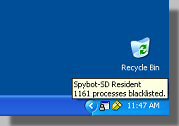
When Spybot was loaded, hopefully you checked the box to load Tea Timer. Tea Timer is a program that runs in your system tray. See the picture below for an example. It's the little box with a padlock on it. Holding your mouse over it and you should see a pop up like in the picture below. Tea Timer will watch your registry and notify you if anything tries to write to the registry.

Without getting into a long discussion of the registry, basically it's one of the places that programs are automatically started from whenever you log into your PC. So spyware wants to be able to write to the registry to allow itself to automatically start every time you log in.

But... Something writing to your registry is not necessarily a bad thing. It just means you have to be aware of what you are doing and what might be happening at any point in time. If you are just browsing the web reading the various information available, and you get a popup that something wants to write to the registry, that's probably some spyware trying to install itself. If you are trying to load a new program from a cd you just bought, very likely the program will write many entries to the reigistry and these will all be ok. For this reason, if you know that you are doing something that will require writing numerous entries to the registry (like a program install) then right click on Tea Timer in your tray and exit it. Note that you will have to log out and then log back in to get it running again.


This is just showing the system tray with Tea Timer or Spybot- SD Resident running.


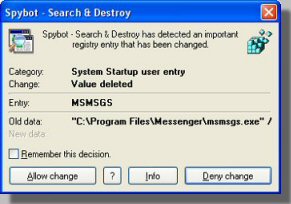
An example of the pop up box you will see when something tries to write to the registry. Note the "Remember this decision" box. If you don't check this then you will have to answer this question everytime you log into the PC. But this also gives you a chance to try letting a program write to the registry without the decision being permanent. Until you check the box and then Allow or Deny the change it won't take permanent effect.


Back to FridayCards home Back to Main AntiSpyware page